

Table of Contents
- Why One Wrong Click Can Take Down Your Chiropractic Website
- What You’ll Need Before You Update Chiropractic Website Content
- Step-by-Step: How to Update Chiropractic Website Content
- Common Mistakes That Break Chiropractic Sites (And How to Avoid Them)
- A Simple Content Audit Framework for Your Site
- Chiropractor Website Local SEO Tips for Every Update
- How to Improve Chiropractic Website Performance After Changes
- When to Use Chiropractic Website Maintenance Services Instead
- Frequently Asked Questions
Last Updated: September 22, 2026
Why One Wrong Click Can Take Down Your Chiropractic Website
Most chiropractors did not go to school to become web developers. Yet many end up managing a website anyway, and learning how to update chiropractic website content the hard way. At ChiroPage, we have heard this horror story numerous times: a busy practice owner opens the page builder to change one phone number, and suddenly the homepage layout collapses.
What You’ll Need Before You Update Chiropractic Website Content
If you really want to do it yourself, you will need:
- Login credentials for your site’s CMS or page builder
- A recent backup of the site (or a way to restore one)
- Your current text and images ready to go, so you are not hunting mid-edit
- A staging or preview option to test changes before they go live
- Your brand details (colors, fonts, logo files) in case something needs replacing
If your host does not offer easy backups, that is a red flag. Many chiropractors move to a managed service for exactly this reason.
Step-by-Step: How to Update Chiropractic Website Content
Follow these steps in order. Each one protects you from the next, and each one assumes you are working in a templated page builder rather than hand-coding anything.
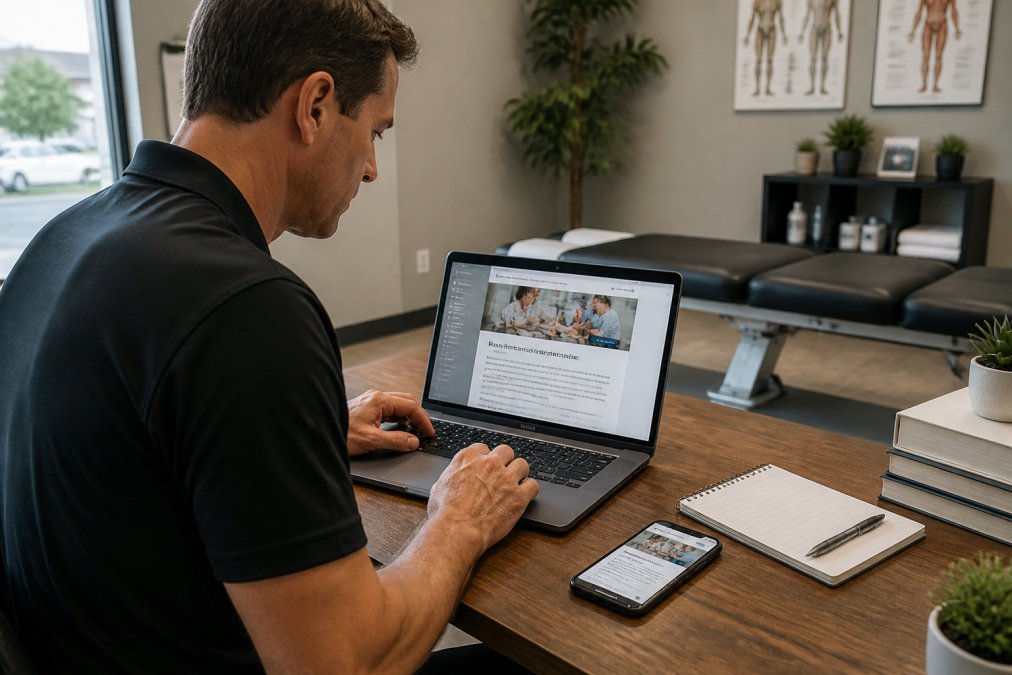
Step 1: Back Up Before You Touch Anything
Create a full backup first. On WordPress, most managed hosts include a one-click backup or a daily restore point; on Divi-based templates you can also export the page layout itself from the Divi Builder’s portability menu, which saves just that page if you only need to roll back one edit. If your builder has no export, copy your text into a plain document and download your images to a folder on your desktop.
Step 2: Edit Text and Images in the Page Builder
Open the page you want to change. In most templated builders you click directly into the text module and type; for images, upload your new file to the media library and swap it into the image module rather than deleting and re-adding the module, which is what usually breaks the surrounding layout.
Two rules here:
- Keep your text short and scannable, two to three sentences per block, with a subheading every few paragraphs
- Resize images to roughly 1,600 pixels wide before upload so they do not slow the page down
Step 3: Update Hours, Services, and Staff Pages
These pages change most often. Update your hours for holidays, add new services, and refresh staff bios when someone joins or leaves. On most templated sites the hours block also feeds the footer and the contact page, so change it in one place and check the others.
Step 4: Preview on Mobile, Then Publish
Always preview on a phone before you publish. Most visitors find you on mobile, so a page that looks fine on desktop can look broken on a small screen. Check the layout, the buttons, and the text size, then hit publish.
Step 5: Verify the Live Page After Publishing
Open the published page in a private browser window, not the one where you are logged in. Cached versions can hide a broken layout from you for hours. Click every button, submit the contact form once with a test message, and confirm the phone number in the header still dials correctly.
Step 6: Log What You Changed
Keep a simple running list, date, page, what changed. When something breaks three weeks later, that log is the fastest way to find the cause. It also tells you which pages you have not touched in a year, which is the start of the audit framework below.
When a Simple Edit Turns Into Hours of Cleanup
Even careful practitioners hit a wall. A plugin update conflicts with the theme, a section deletes itself when you drag a module, or the mobile menu stops opening after a text change. This is the moment most chiropractors lose an afternoon they meant to spend with patients.
Common Mistakes That Break Chiropractic Sites (And How to Avoid Them)
Small errors cause most site failures. Here are the ones we see again and again, plus the fix for each.
| Mistake | What Happens | The Fix |
|---|---|---|
| Editing live with no backup | No way to undo a broken change | Back up before every edit |
| Pasting from Word | Hidden code breaks formatting | Paste as plain text |
| Uploading huge images | Slow page speed, higher bounce rate | Resize images before upload |
| Forgetting mobile preview | Broken layout on phones | Always preview on mobile |
| Deleting a section by accident | Missing content, broken layout | Use undo, or restore from backup |
A Simple Content Audit Framework for Your Site
A content audit keeps your site fresh without a full rebuild. Most competitors tell you to “review your pages regularly” and stop there. The framework below gives you a scoring model, a cadence, and a delete rule so the audit actually produces decisions instead of a longer to-do list.
The Three-Bucket Scoring Model
Work through each page and score it on three questions, one point each:
- Accuracy, Are the hours, phone number, services, and staff current?
- Relevance, Does this page answer a question a patient actually asks?
- Action, Does the page have one clear next step for the reader?
The Page-by-Page Checklist
Run this against every page in the sitemap:
- Are the hours and phone number correct on this page and in the footer?
- Do the services listed match what you actually offer today?
- Are staff bios and photos current?
- Is the “About” page still accurate?
- Are there any broken links or missing images?
- Does the page have a single clear call to action?
- Is the page duplicated elsewhere on the site?
- Does the page load in under three seconds on a phone?
When to Run the Audit
A full audit once a quarter is enough for most practices. Between audits, run a five-minute spot check whenever one of these triggers fires:
- A provider joins or leaves
- You add or drop a service
- Holiday hours change
- You move suites or change the phone number
- A patient tells you the site said something different
What to Do With the Results
Fix the “update” list first, in order of how many patients see the page. The homepage, the contact page, and the services page come before a blog post from two years ago. Then handle the “remove” list in one pass so you are not deleting pages piecemeal and breaking internal links.
Chiropractor Website Local SEO Tips for Every Update
Every edit is a chance to help local patients find you. A few chiropractor website local SEO tips make each update work harder.
Other quick wins:
- Write page titles that include your service and location
- Add your practice to local directories and keep listings current
- Use real patient questions as headings
- Link between related pages on your own site
How to Improve Chiropractic Website Performance After Changes
Speed and clarity decide whether visitors stay. To improve chiropractic website performance, check three things after every update.
When to Use Chiropractic Website Maintenance Services Instead
Sometimes the smart move is to stop doing it yourself. Chiropractic website maintenance services handle the technical work so you can stay with patients.
Signs it is time to hand it off:
- You dread opening the page builder
- Updates sit undone for weeks
- You have broken the site more than once
- You cannot tell if your site is fast or secure
Frequently Asked Questions
How do I update my chiropractic website content without breaking it?
Back up the site first, then edit one section at a time in the page builder and preview on mobile before publishing. Most breaks happen when someone pastes formatted text from a word processor into the editor, which drags in hidden code. Paste as plain text, resize images before uploading, and avoid touching theme files or plugins unless you know exactly what they do. If a change feels risky, send it to a maintenance team instead of experimenting on a live site.
How often should a chiropractic website be updated for local search?
Update hours, staff, services, and insurance details the moment they change, and refresh core pages at least once a quarter. Add new patient resources or blog posts monthly so search engines see fresh content. Practices that let service pages sit untouched for a year often lose rankings to competitors who publish consistently. A simple content calendar with one update per month keeps the site current without becoming a second job.
Is it better to outsource website maintenance for a chiropractic clinic?
It depends on your time and comfort with the backend. Solo chiropractors who see 30 or more patients a day rarely have hours to spare for edits, and one wrong plugin update can take the whole site offline. Maintenance services handle changes the same day, keep backups current, and watch for security and compliance issues. If you enjoy the work and have a reliable backup, DIY is workable, but most practice owners find outsourcing cheaper than a down site.
What should I check after publishing a content update?
Load the page on a phone and a desktop, click every link in the section you edited, and confirm images display at the right size. Check that the page still appears in search results for its main phrase within a few days, and watch your bounce rate in analytics for two weeks. If a page that used to get traffic drops off, revert the change or ask your maintenance provider to review the metadata and internal links.
Updating your own site sounds easy until one wrong click takes it down. That risk is real for busy chiropractors who have patients to see. ChiroPage removes it: unlimited done-for-you updates, no contracts or setup fees, and fast response times from a US-based team. Get started with ChiroPage and keep your site current without touching a page builder.
